Ask about the work already in your CRM
Find leads, deals, contacts, companies and tasks. Ask follow-up questions, get links to records and see charts when a complete dataset supports them.
“Show my open deals and group their value by stage.”
Turn a question into your next step. Find the right deals, research new companies and update Bitrix24—through a conversation.
In Bitrix24 chat. In your Chrome side panel.
With access controlled by your administrator.
Example conversation · fictional records
These two deals have a follow-up scheduled for today.
Would you like to create a follow-up task?
Keep your attention on the customer. Let CRM Pilot help with the records, research and follow-up.
Find leads, deals, contacts, companies and tasks. Ask follow-up questions, get links to records and see charts when a complete dataset supports them.
“Show my open deals and group their value by stage.”
Search the web for companies in a city or industry. Review linked sources, then ask CRM Pilot to create the records you need.
“Find packaging companies in Manchester and show the sources.”
Create or edit leads, deals, contacts, companies and tasks when your administrator permits it. Existing access starts as read only.
“Create a follow-up task for this deal, due tomorrow.”
Choose the channel that fits your day. Your administrator can enable either one or both.
Message CRM Pilot in a private chat. Open the application once to activate your own access, then ask your question. No extension or key entry required.
Keep CRM Pilot in the Chrome side panel. Optionally attach the current page after granting access to that specific site. Only sanitized visible page content is captured.
Download the Chrome extensionGive each employee the tools their role needs. CRM Pilot checks both their Bitrix24 access and the permissions you configure.
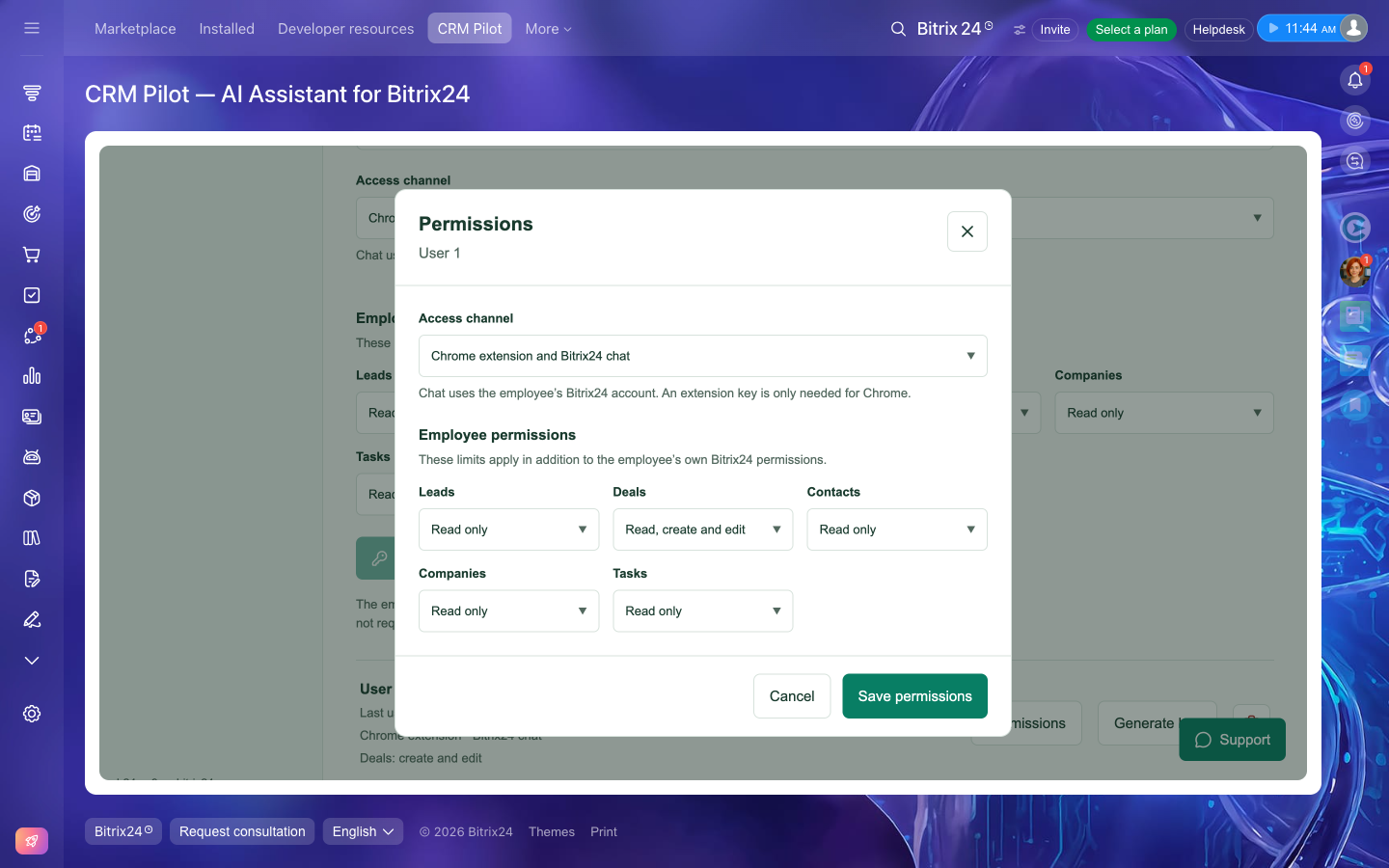
An administrator sets up the application. Each employee activates their own connection.
Install CRM Pilot in Bitrix24 as an administrator. Provide your installation contact details and accept the EULA. The app registers its chat bot automatically.
Add an employee in Connections, enable their channels and select their entity permissions. Generate a personal key if they will use Chrome.
The assigned employee opens CRM Pilot in Bitrix24 once. They can then use the bot or enter their key in the Chrome extension.
No. If your administrator enables Bitrix24 chat, you can talk to CRM Pilot directly in a private bot conversation. The extension adds a browser side panel and optional page context.
Only with the entity permissions your administrator grants, within your own Bitrix24 access. Create and edit are configured separately. Deleting CRM records is not supported.
No. Page context is optional. You choose a tab and grant access to its exact HTTPS site. Scripts, hidden fields and input values are excluded from the captured HTML.
AI can make mistakes. Review answers, web sources and important record changes. CRM Pilot is an assistant; it does not replace your business judgment.
The current extension is distributed as a ZIP from this site. Unzip it, enable Developer mode at chrome://extensions and choose Load unpacked. Your organization may restrict this installation method.
Get help installing CRM Pilot and choosing the right access for your team.